Enroll iOS devices in Supervised Mode
- Set up Supervised Mode:
- Download and open Apple Configurator 2.
- Attach the device to your computer using a USB cable.
- In the All Devices view, select the device.
- Click Prepare.
- Follow all steps in the wizard to activate Supervised Mode.
When prompted for an MDM URL, use your KACE Cloud enrollment URL.
The enrollment URL can be found in the KACE Cloud Enroll Devices view, accessible by navigating to Devices > Enrollment Options > Enroll Devices > iOS.
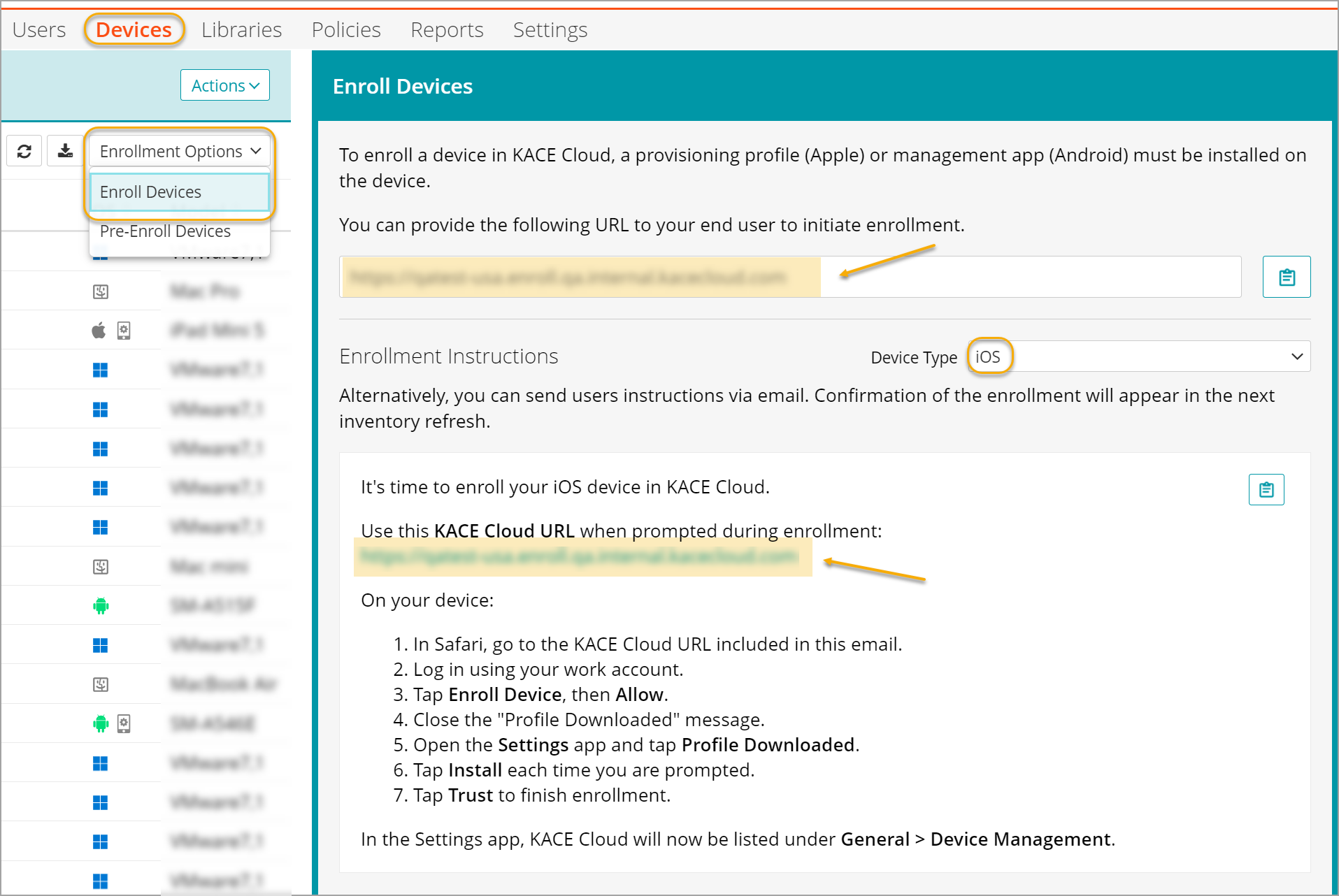
You can also email these instructions to the user and have them complete the procedure. Alternatively, send an enrollment URL to the device user to initiate enrollment, or provide the URL with instructions by email. The administrator can assemble the enrollment URL using the following syntax:
- https://yoursubdomain.enroll.kacecloud.com
- https://yoursubdomain.enroll.westeurope.kacecloud.com (
westeuropedata centers only.)
- Once complete, the device user will see a "supervised and managed by [company name]" message under their Settings.
For detailed instructions and troubleshooting when activating supervised mode, see Apple Configurator 2 User Guide.
- After activating supervised mode using Apple Configurator 2, manage the iOS device using KACE Cloud.
- Go to Devices in top navigation.
- Select a device or devices.
- In the right panel, click the iOS dropdown to see all available actions for managing a supervised device.
In the devices section, you can identify a supervised device by the device icon next to the iOS icon.
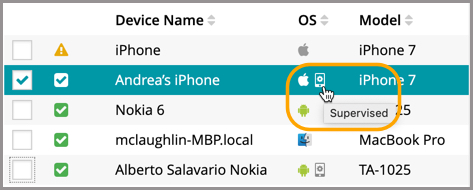
Additional restrictions that can be applied to supervised devices are located under Restriction Sets in the device detail panel.
.png)
- Configure automated VPN connections.
Supervised iOS devices can now accept one or more VPN configuration profile(s) that are set as Always On. An Always On VPN configuration provides an automated IKEv2 connection to a VPN without any action being required by end users.
The Always On check box is available for selection in the Add New iOS VPN Configuration screen.
